Academy courses
Your first day in Drommo
The chat, its three modes and how to keep your chats in order.
0 of 3 lessons
By the end you will
- Send messages in Text, Image and Web modes.
- Organize your chats so you can find them later.
- Find every page of the side menu and choose your privacy settings.
Lesson 1 · 5 min
The three modes
Know when to use Text, Image or Web.
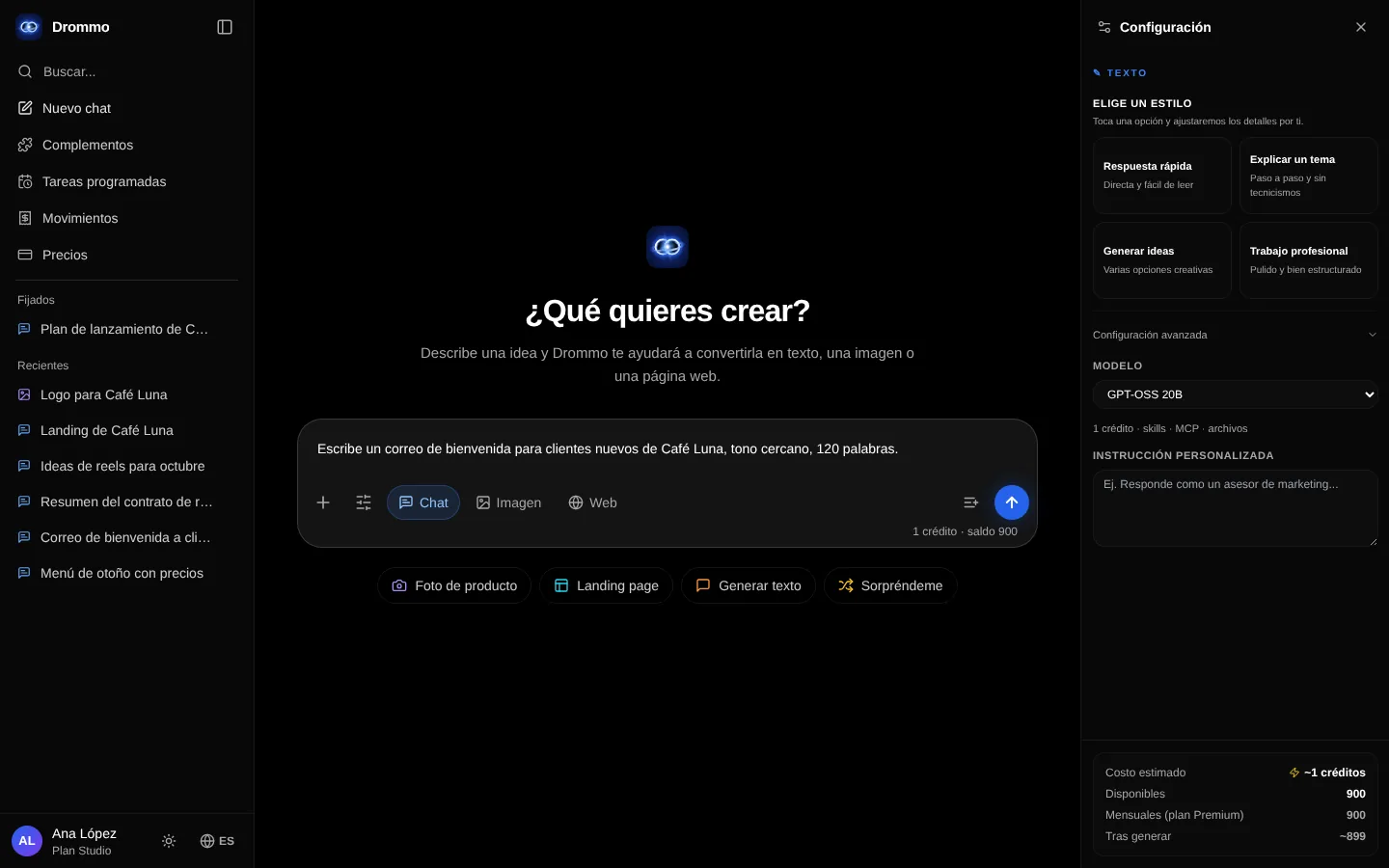
| Mode | Use it to |
|---|---|
| Text | Talk, write, summarize, translate, plan or code. |
| Image | Create an illustration, a photo, a logo or a poster. |
| Web | Build a page or component with a live preview. |
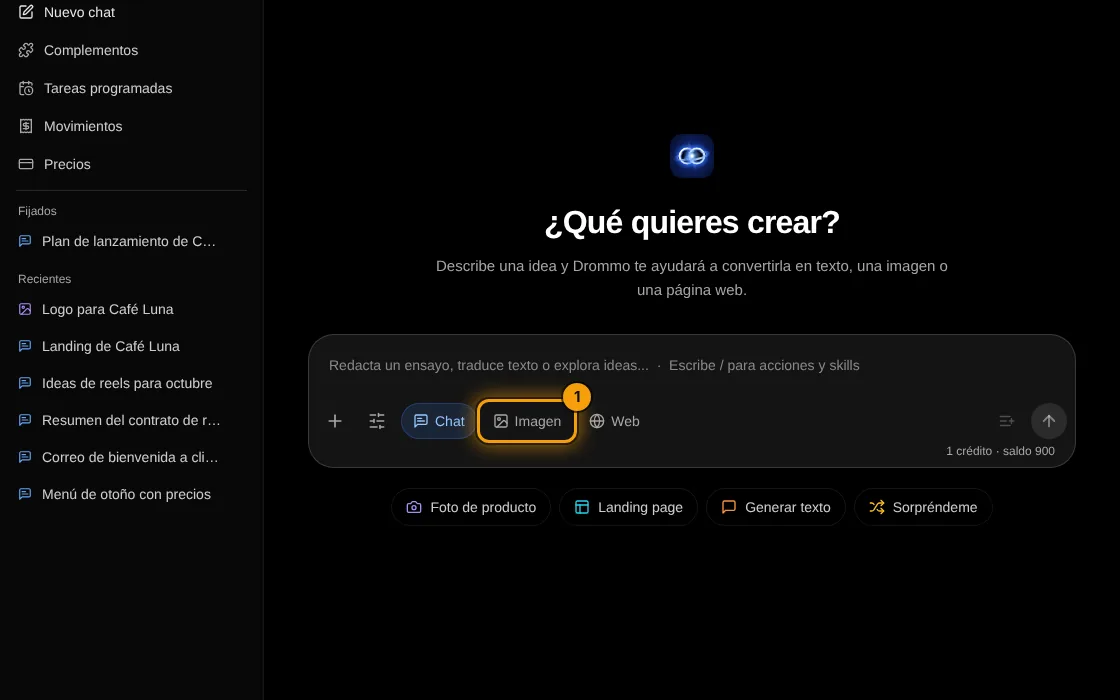
- 1
Pick the mode
Under the message box, tap Chat, Image or Web (1).
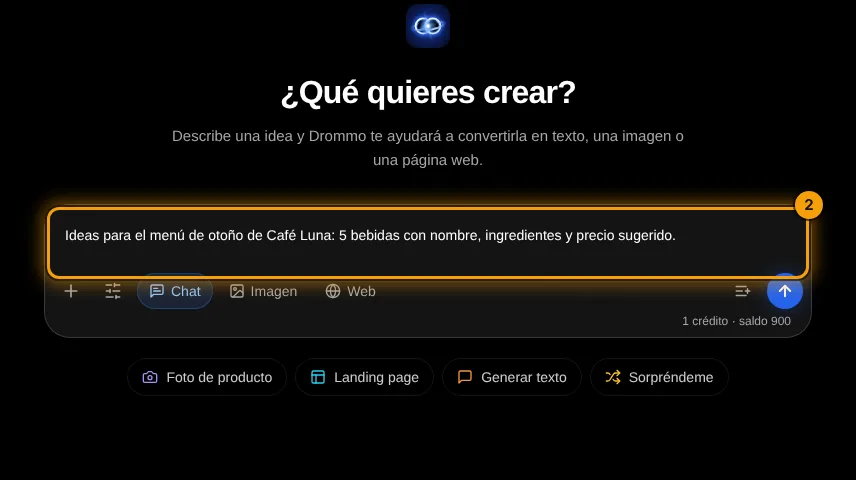
- 2
Write what you need
Type in the box (2). Shift+Enter adds a new line; / opens actions and skills.
- 3
Send it
Press the arrow next to the box to send. Then you can reply, edit or keep going in the same chat.
Give me 5 name ideas for a vegan bakery, with a one-line reason for each.
Your turn: write your promptText prompt
Write your own version for your case. The Academy coach checks with rules whether it has every part, what is missing and suggests a version to complete. It is instant, not sent to the chat and does not use your plan.
- A clear task (what to do)
- Context: who it is for and why
- Format and length of the answer
- Tone or constraints (what to avoid)
If your training permission is on (Settings → Privacy), your prompt and the review may be used, without personal data, to improve Drommo's models.
Challenge: Send the same idea in all three modes and compare the results.
Lesson 2 · 3 min
Keep your chats in order
Rename, pin and find your chats.
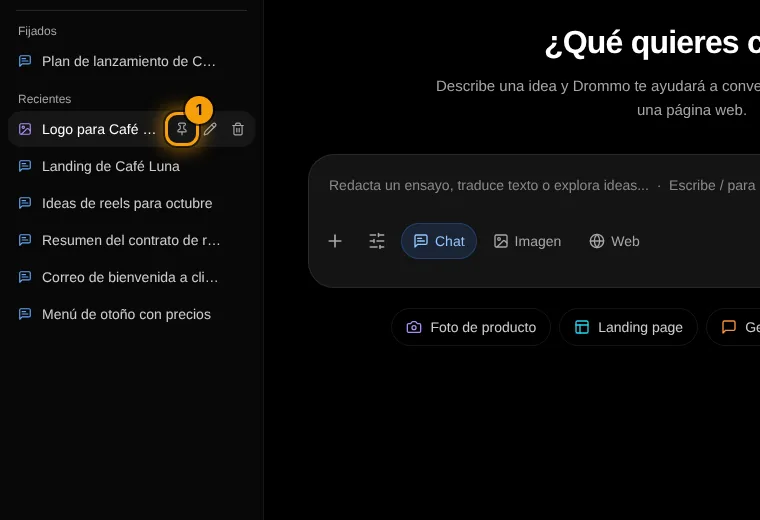
- 1
Pin
Hover a chat in Recent and tap the pin (1). It moves to Pinned; you can keep up to 5 there.
- 2
Rename
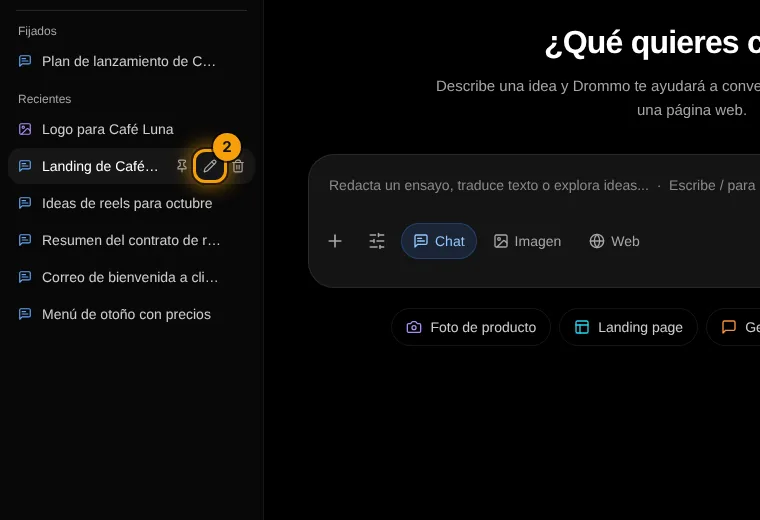
Double-click the chat or tap the pencil (2), type a clear name and press Enter. On mobile the pencil is always visible.
- 3
Search
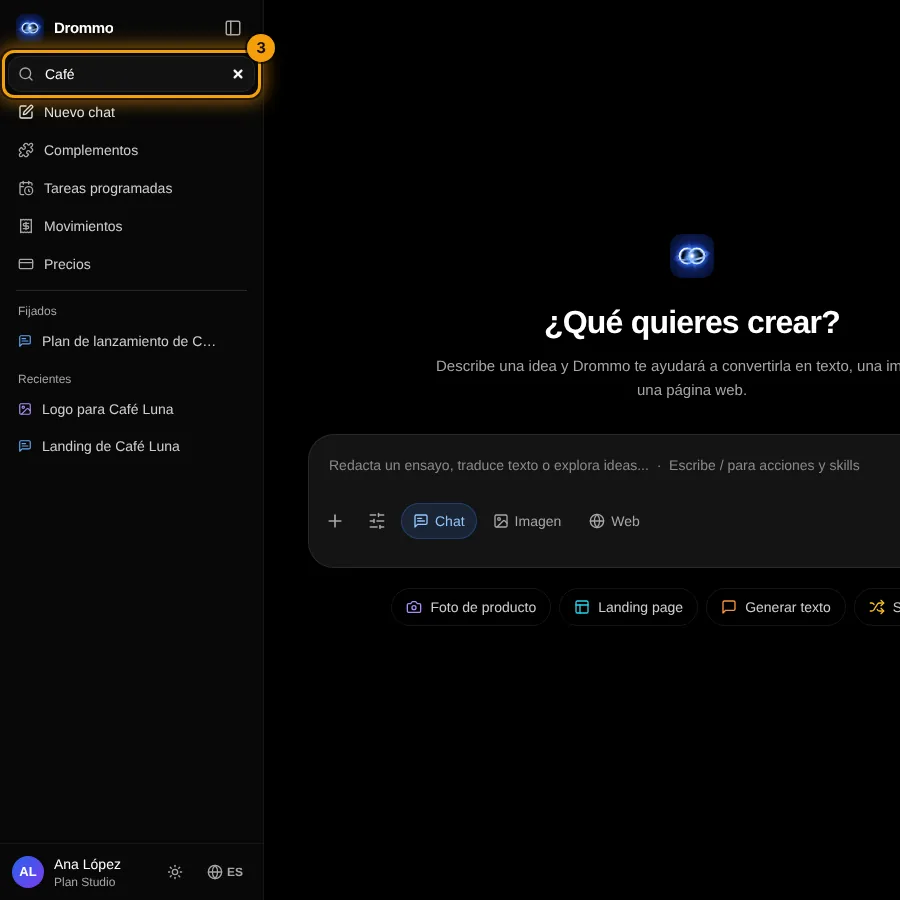
Type in Search at the top of the side menu (3); the list shows only the chats that match.
Challenge: Pin the chat you will use most this week and rename it.
Lesson 3 · 3 min
The side menu and your privacy
Reach every page and decide how your data is used.
- 1
Scroll the menu
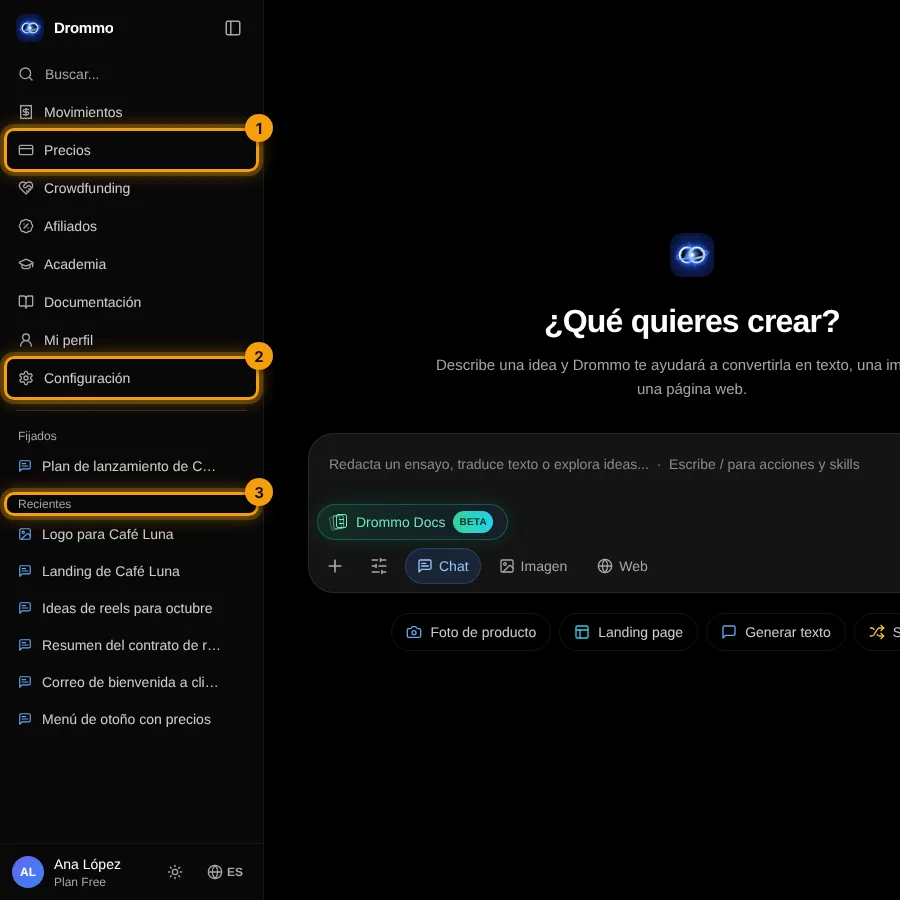
The menu shows the pages down to Pricing (1). Scroll inside it to reach Documentation and Settings (2). Pinned and Recent scroll on their own (3).
- 2
Choose your privacy
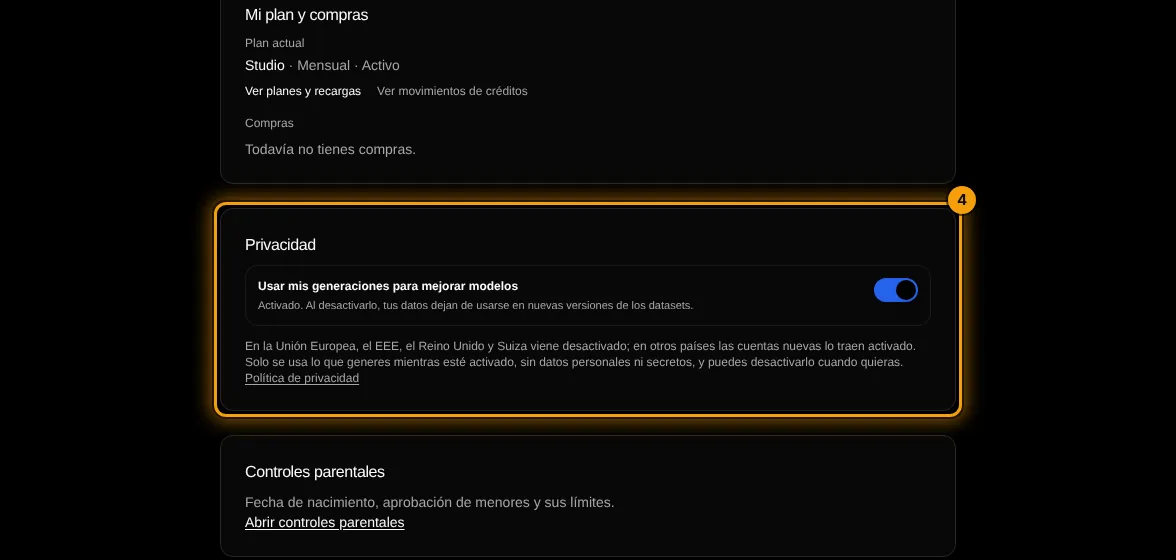
In Settings, the Privacy card (4) has the switch "Use my generations to improve models". Turn it on or off whenever you want; it does not change your plan.
- At the bottom of the menu you see your name and plan, the sun and moon button for light or dark theme, and ES/EN for the language.
- Without an account every tool opens read-only with an example, except Brand kit and Drommo Flow, which come with paid plans. Your Academy progress is saved in your account once you sign in.
- In the European Union, the EEA, the United Kingdom and Switzerland the training permission starts off; in other countries it is on and you can turn it off.
Challenge: Switch to the light theme, then open Settings and check your Privacy card.
Final exam and certificate
Answer the questions. With 80% or more you get your Drommo Academy certificate with your name and the date you finished. You can try as many times as you want.
In the documentation