Documentation menu
Canvases and assistants
Image canvas
Combine reference photos, plan with AI notes and edit every result on one board.
Open the canvas
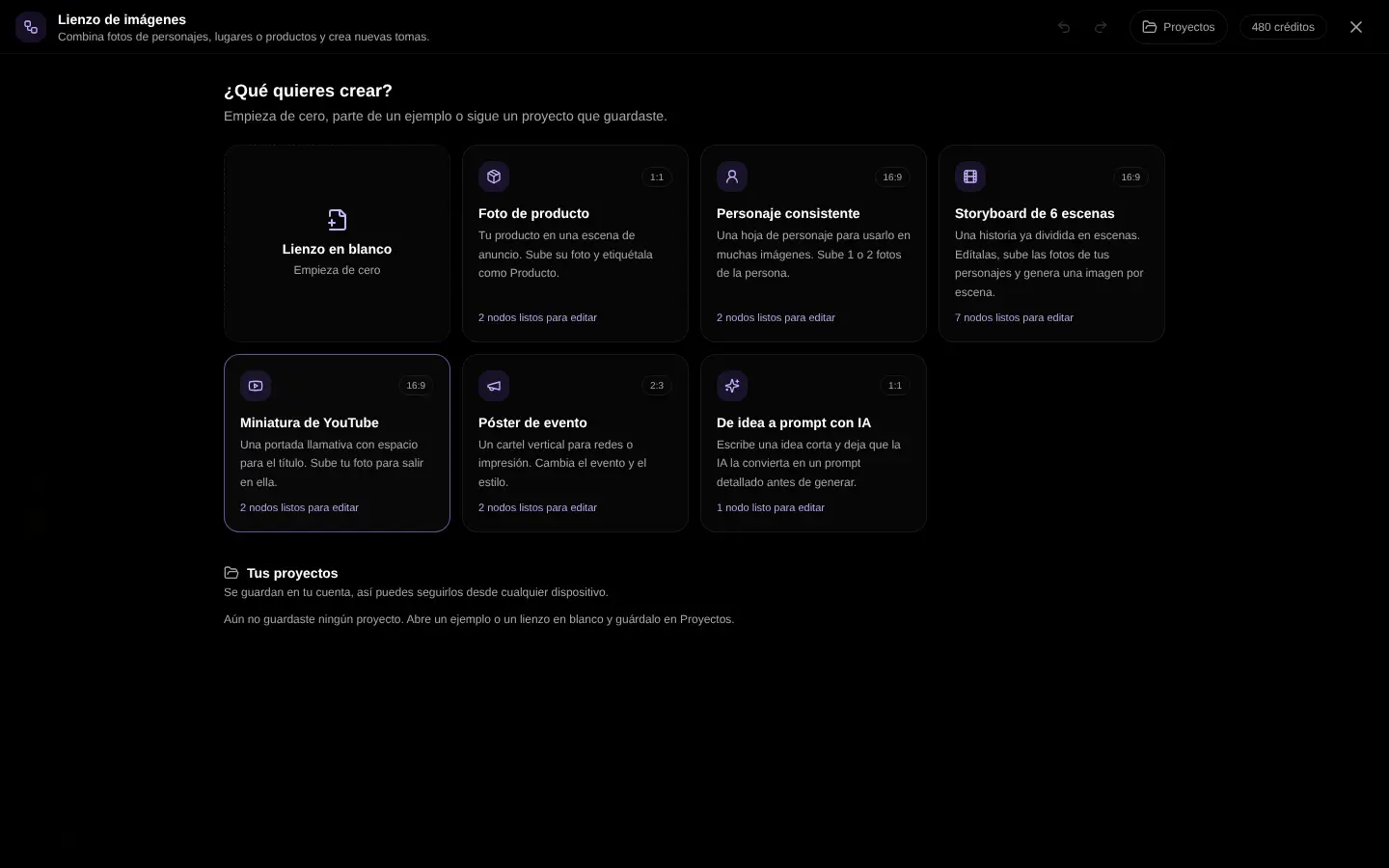
- 1
Image mode
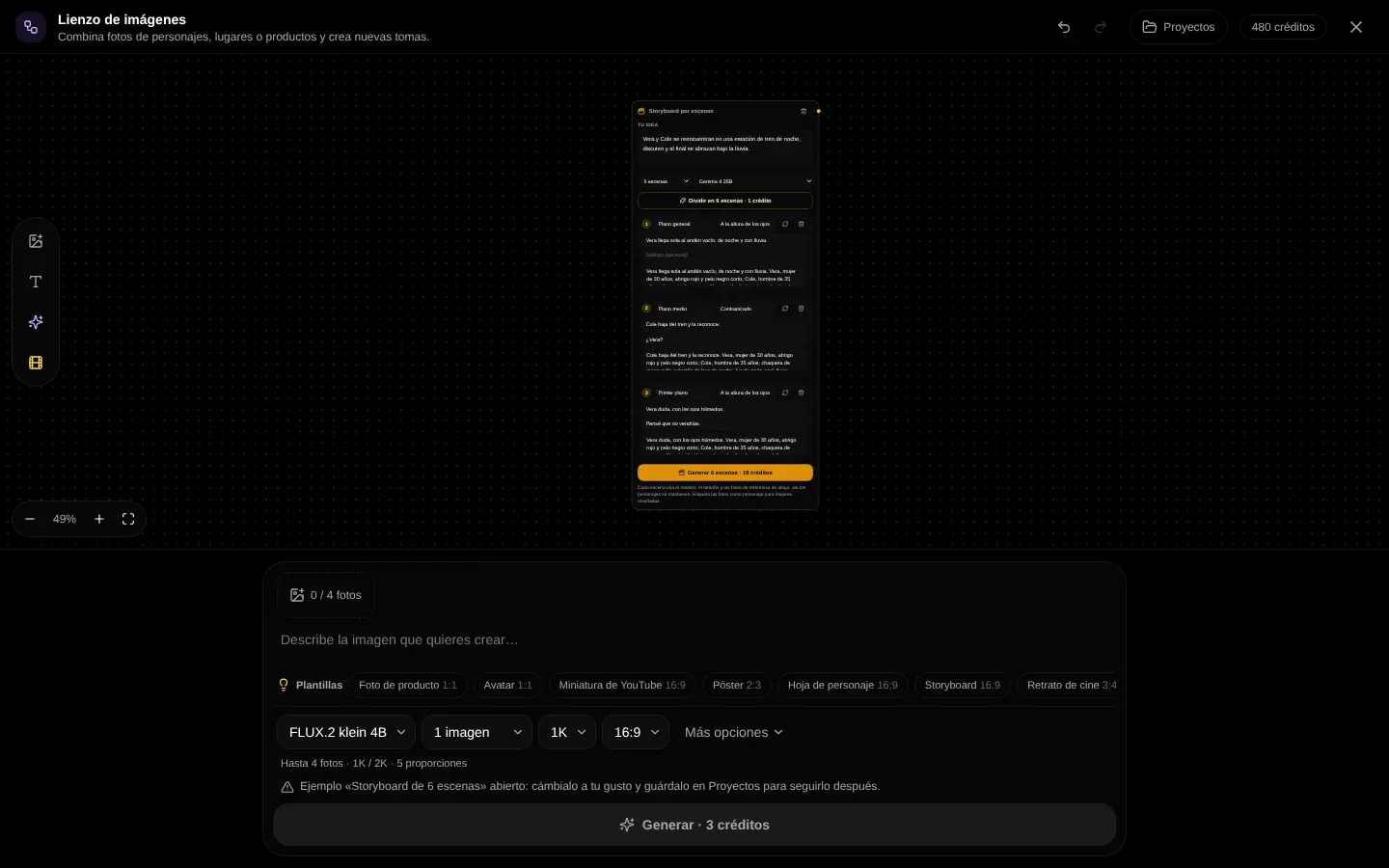
In the chat, pick Image and press Canvas next to the message box.
- 2
Start
Pick a blank canvas, one of the examples or a project you saved in your account.
- 3
Generate
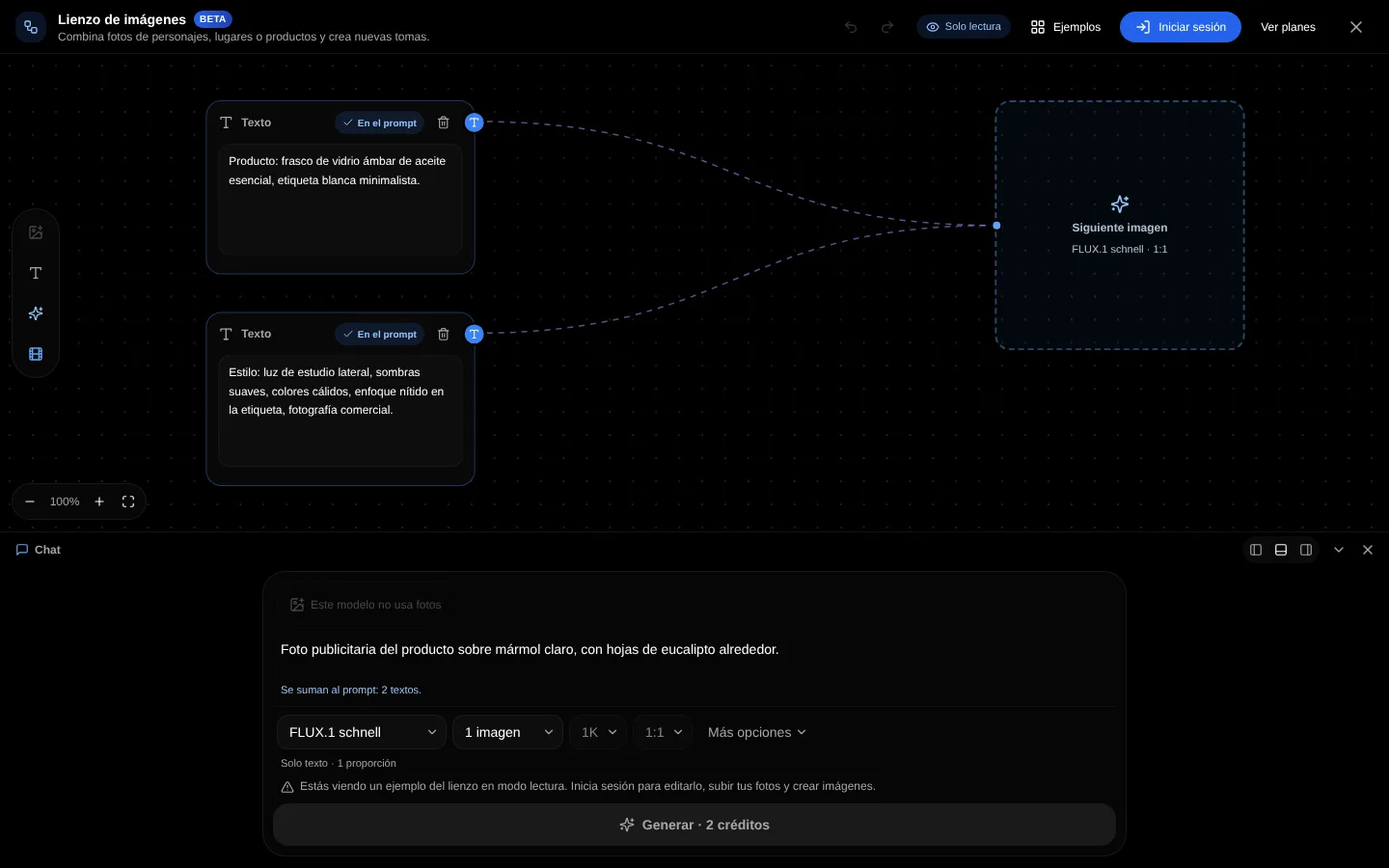
Write the prompt (type / for style shortcuts like /podcast), and choose the model, number of images, size, quality and format. Then press Generate.
Without an account, the canvas opens with an example in read-only: you can look around, zoom and switch views, but not edit or generate. Create your account to use it.
Move the chat panel
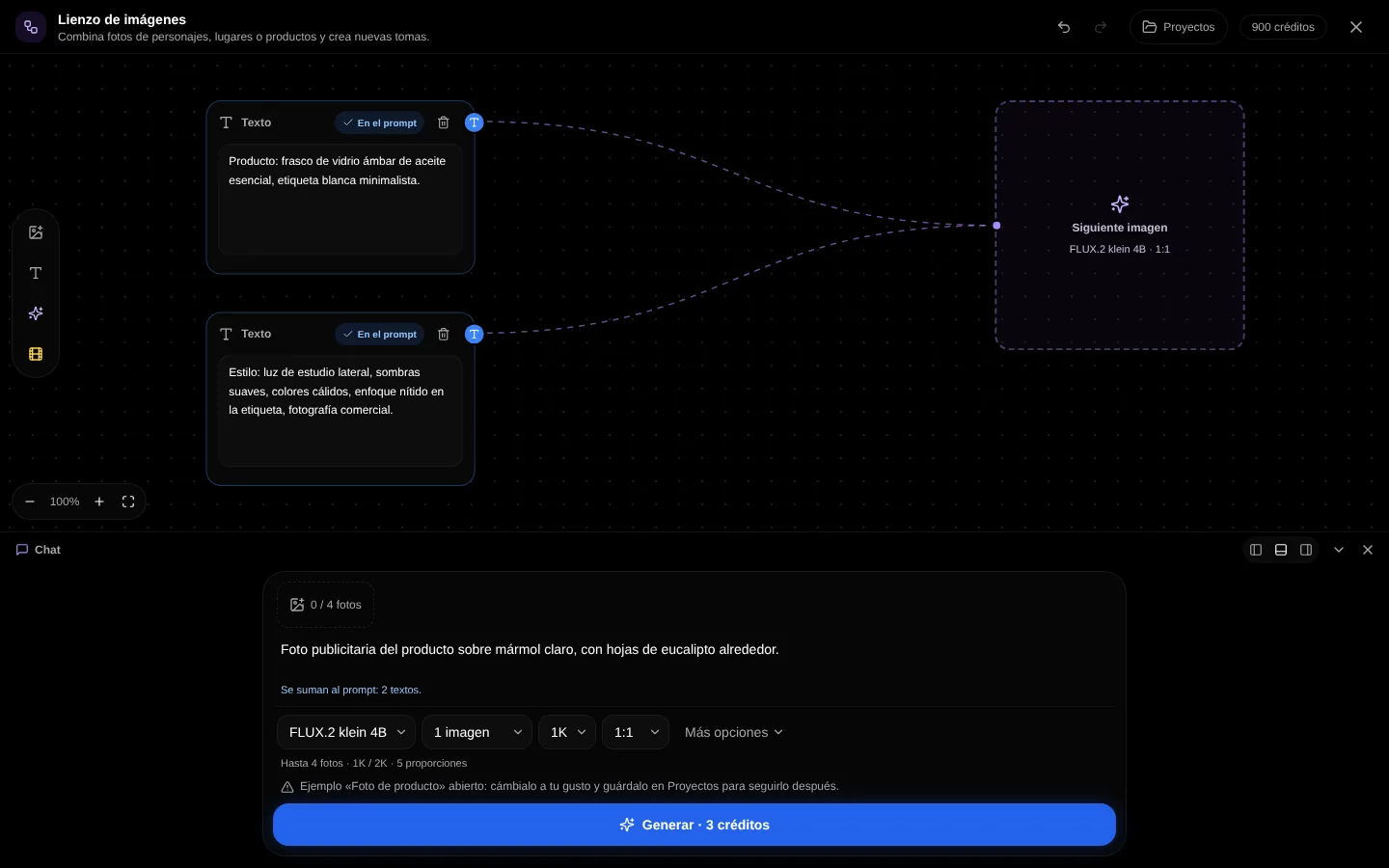
- The panel with the prompt and the results can sit on the left, on the right or at the bottom of the board.
- Minimize it to a bar to see the whole board, or close it; a button opens it again.
- Your browser remembers where you left it. On a phone it stays at the bottom, with minimize and close.
Photos, notes and AI prompts
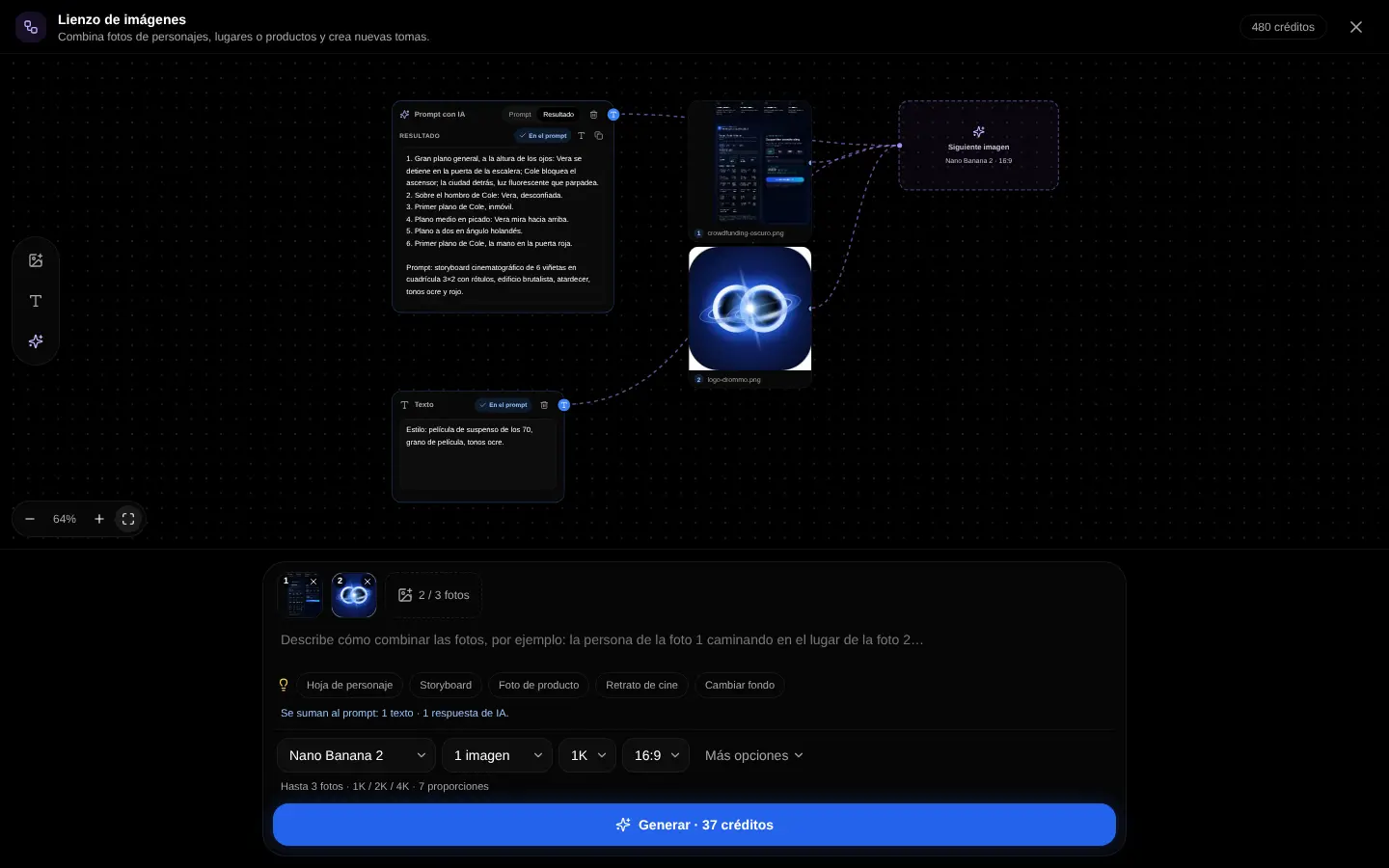
| On the board | What it does |
|---|---|
| Reference photos | Up to the limit of the chosen model. Tag each photo ("product", "background") and the tag goes into the prompt. |
| Text note | A piece of the prompt you want to reuse. |
| AI prompt | A text model writes for you: improve a prompt, describe a photo, a character sheet or a 6-shot storyboard. |
| Next image | Lines join every note and answer to the frame of the next image, so you see what goes into it. |
Drag a result back onto the board or onto the photos to keep iterating from it; a line remembers which image it came from.
Edit a result
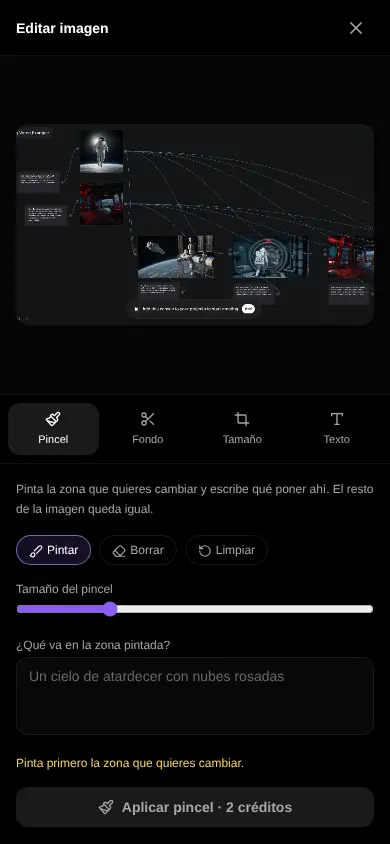
- Brush: paint the area to change and describe what goes there.
- Remove or change the background.
- Upscale to 2K or 4K.
- Crop to social media sizes and add text on top.
- Variations, a before/after slider to compare, undo and redo.
- Download as PNG, JPG or WebP.
Each generation and tool counts toward your plan's usage limit; larger sizes, higher quality and more images use more. The pricing page shows the plans.
Examples
Place the bottle from the reference photo on a marble counter in a bright kitchen, soft daylight, advertising style.
Save and continue later
Projects → Save to my account keeps the board, photos and results. While a saved project is open, every change is saved on its own a moment later. Your saved boards appear in My projects.
Related topics