Documentation menu
Canvases and assistants
Drommo Docs
Join files, web pages and notes on a canvas and get an editable document, slides or a table.
How it works
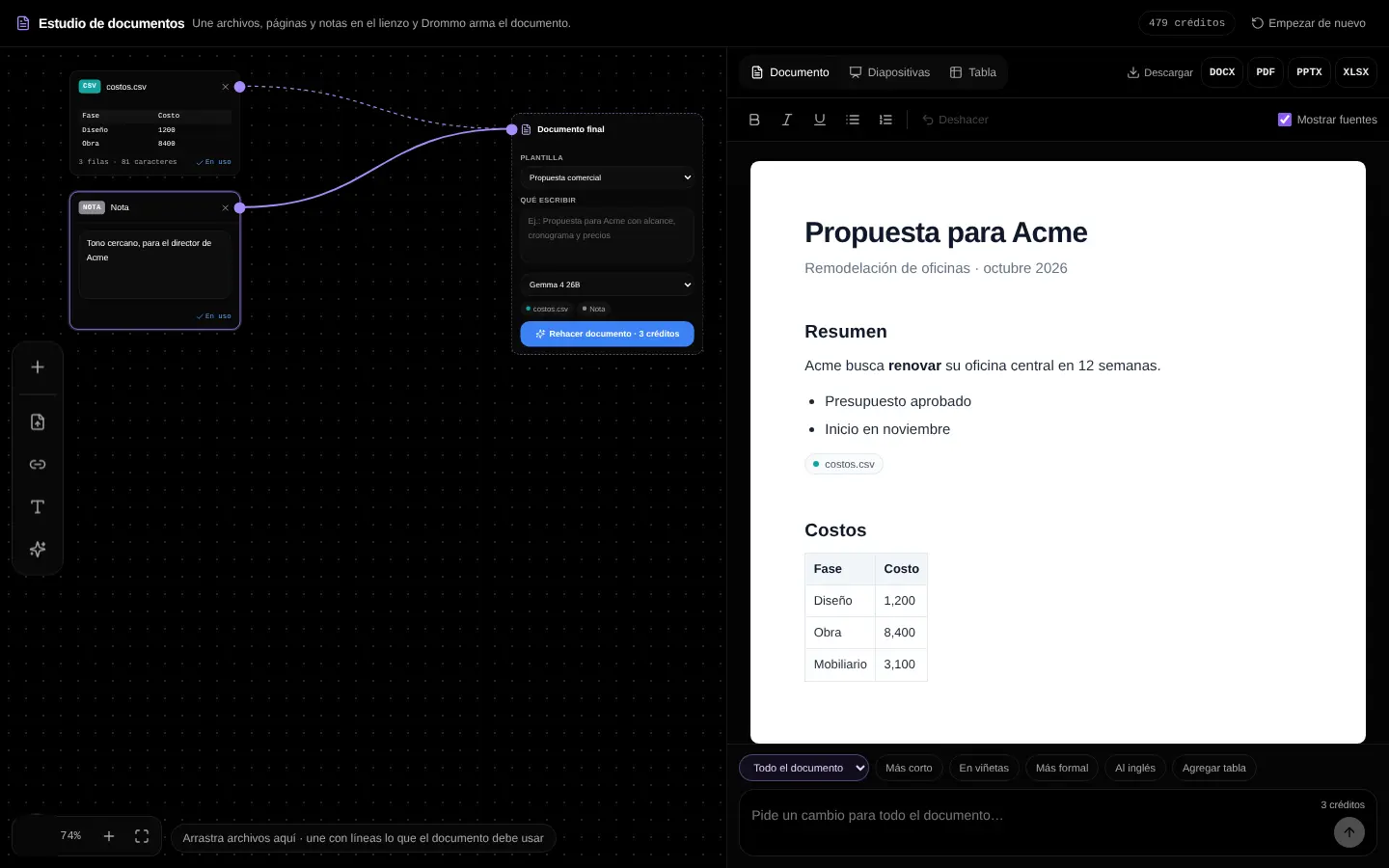
- 1
Open Drommo Docs
From the side menu, or with the Drommo Docs button above the modes under the message box. Start blank, from an example (proposal, sales report, CV, business plan) or from a saved document.
- 2
Add sources
Drag PDF, Word, Excel, PowerPoint, CSV or text files, web pages, notes and AI prompts onto the canvas and join them with lines to "Final document".
- 3
Build it
Write what you need and Drommo builds the document on the right, citing the source of each part.
- 4
Edit and download
Edit it like a word processor or ask the AI to rewrite one section. Switch to Slides or Table and download DOCX, PDF, PPTX or XLSX.
Without an account, Drommo Docs opens with an example in read-only: you can look around, zoom and switch views, but not edit or generate. Create your account to use it.
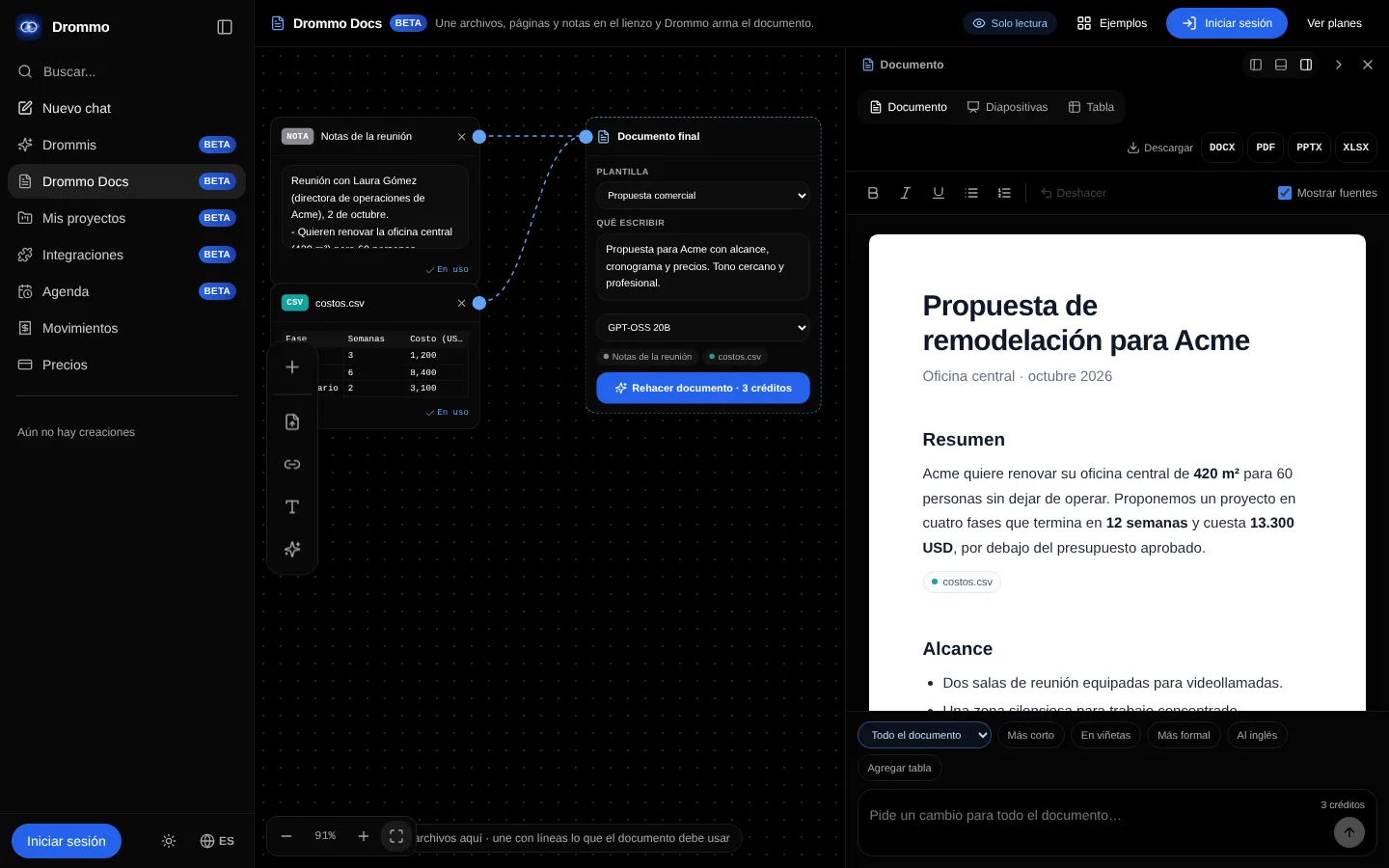
The Document panel moves like the canvas chat panel: dock it on the left, on the right or at the bottom, minimize it or close it. On a phone the studio shows Sources and Document as two tabs.
Word, Excel, PowerPoint, CSV and text files are read in your browser and are not uploaded. Building and editing with AI count toward your plan's usage limit.
Examples
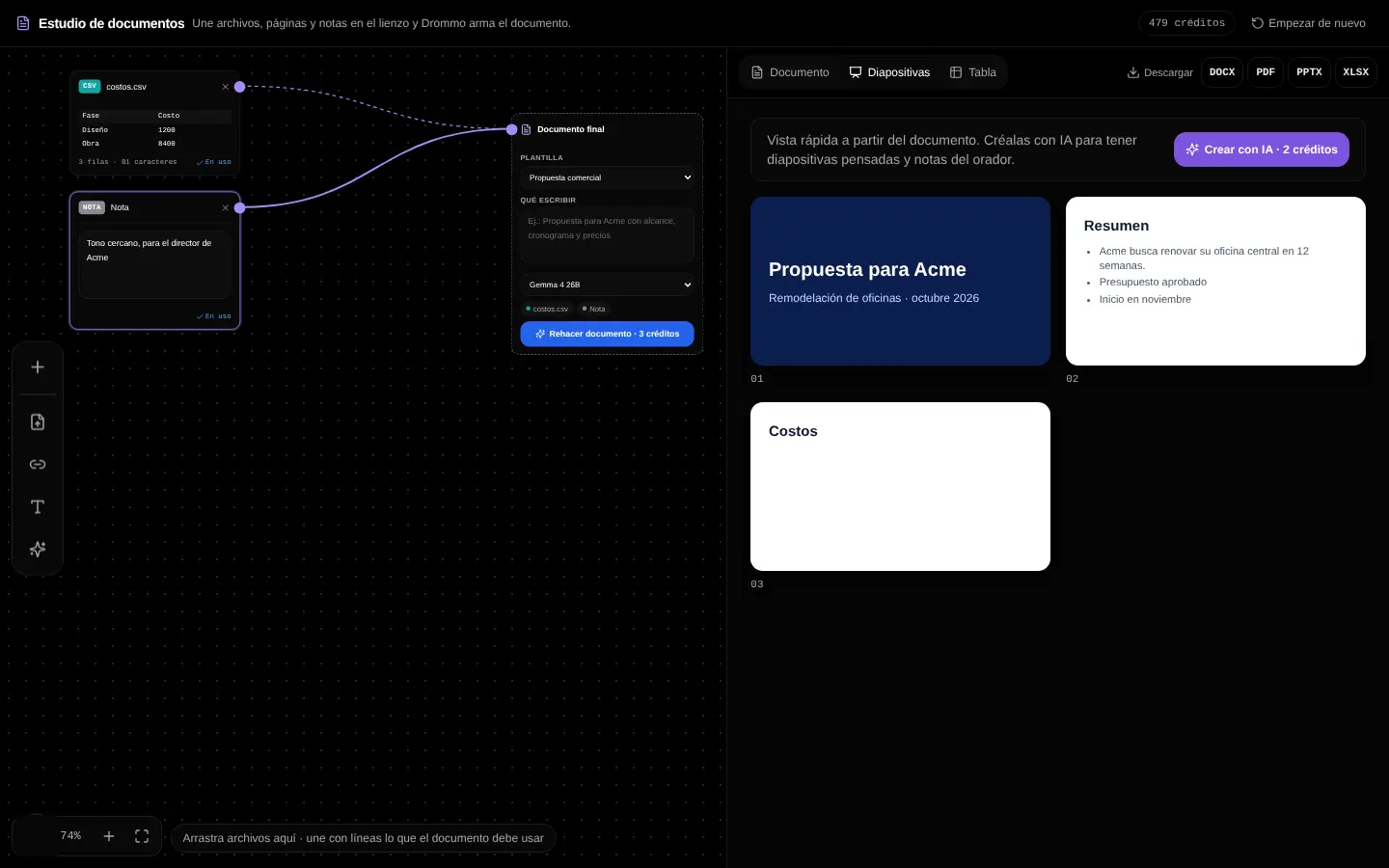
With the sales spreadsheet and last month's report: write a 2-page monthly report with highlights, a table by product and three recommendations.
Save and continue later
Projects → Save to my account keeps the canvas, the document and your instructions; while it is open, changes are saved on their own. Saved documents appear in My projects.
Related topics